Making Instagram Feed Work
As we have mentioned in 'Audience' chapter, Instagram can't be ignored by online stores owners these days because of its popularity among users. It is the third influential social media after Facebook and Twitter. Our user testing proves that. More than 50% of participants noticed Instagram feed among first things that matter for them. Users provided highly positive replies about Instagram presence of the brand and quality of the images.
Therefore, don't stay still and ingtegrate your brand Instagram account to the store and show your openness. If you don't how it yet, we recommend to get it as soon as possible downloading their app. This is a vital need especially for small and medium businesses since it is a platform to show your genuineness and authenticity.
For those who already has Instagram account, please, follow the instruction below to get user ID, access token and client ID for Instagram. These are components you need to make your feed work properly.
How to get user ID & access token:
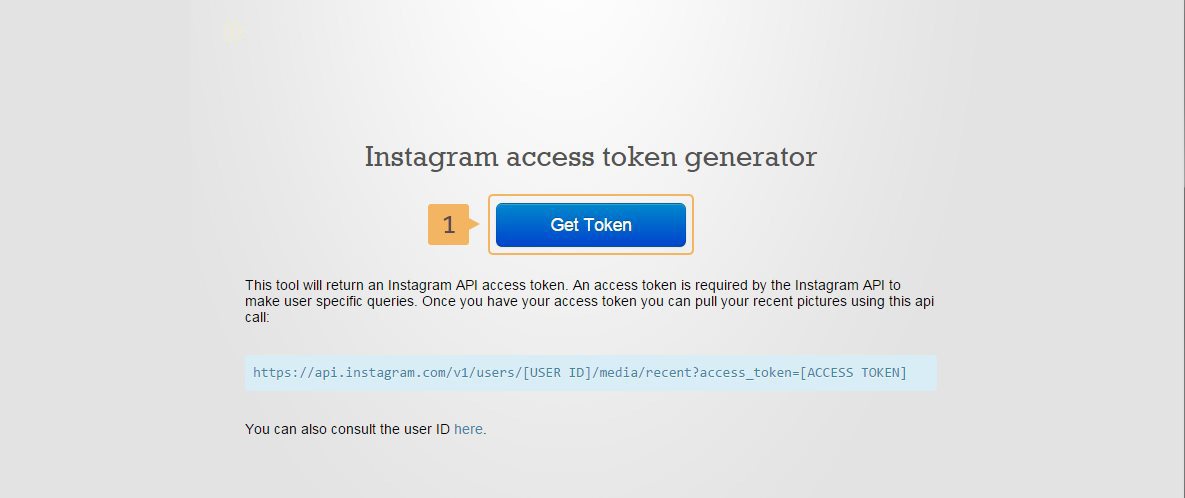
- Navigate to the Instagram Access Token Generator
- Click 'Get Token' button (Fig. 1.1 - [ 1 ]).
- Login into your Instagram account on the new page
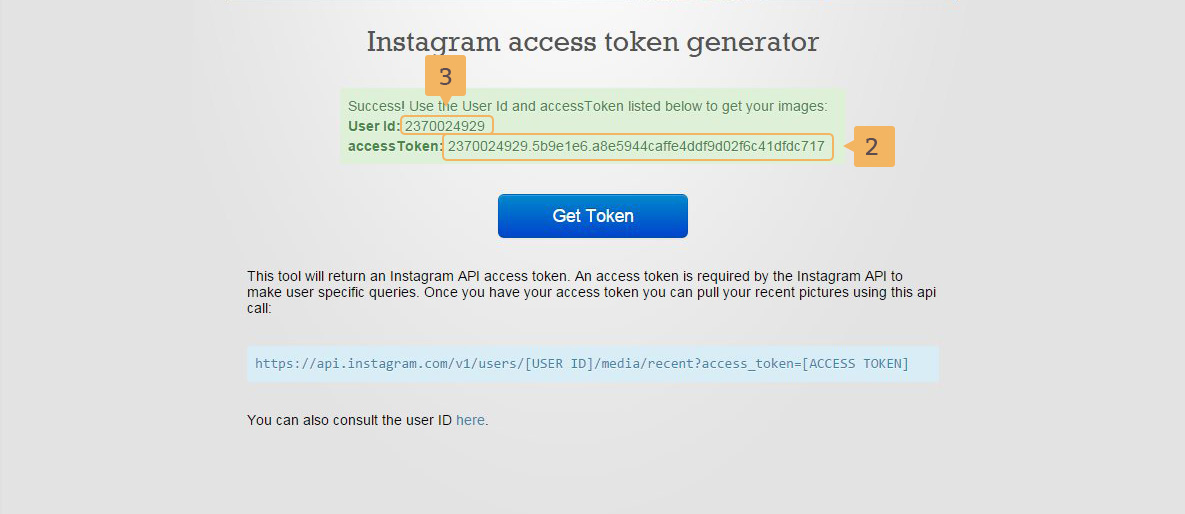
- After that, you get 'Access Token' (Fig. 1.2 - [ 2 ]) and 'User ID' (Fig. 1.2 - [ 3 ]).
Next milestone is to get client ID:
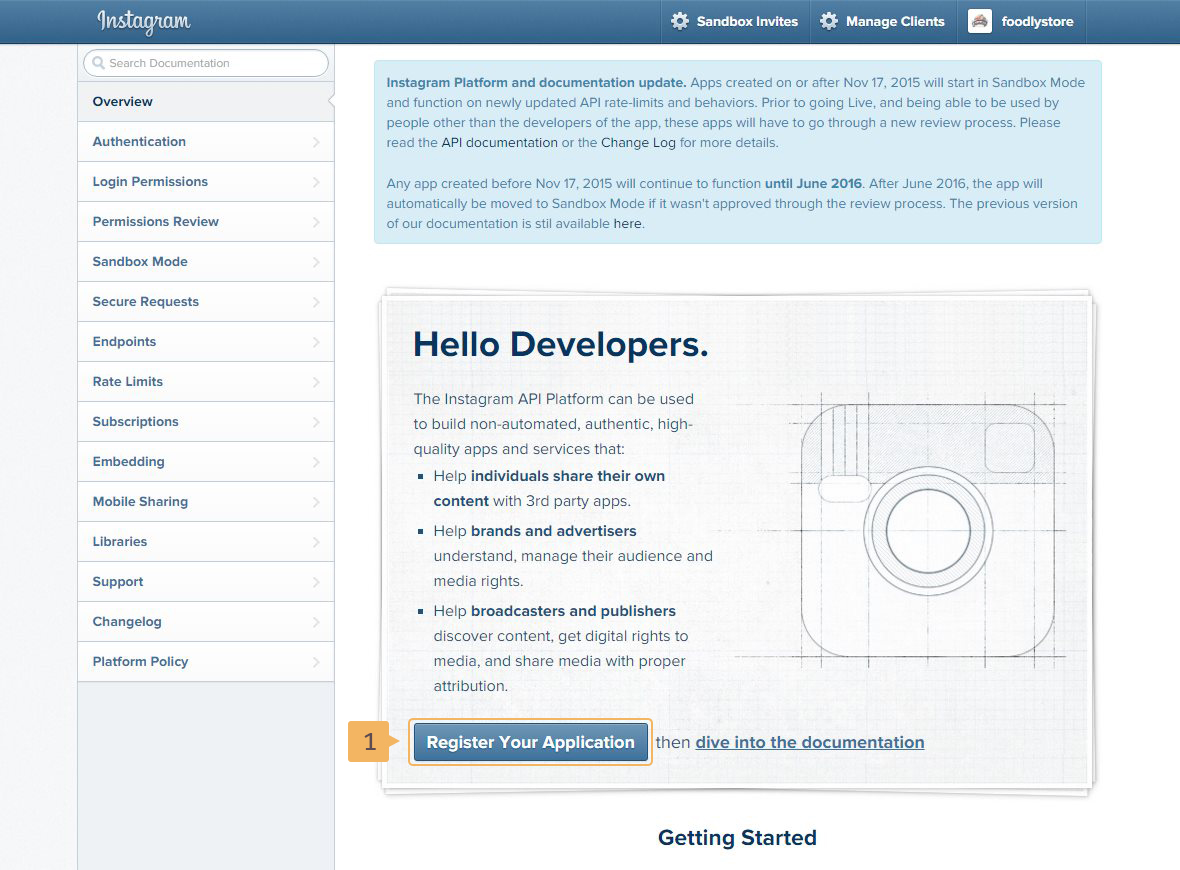
- Go to the Instagram Developer portal and log in with your Instagram credentials. Click on 'Register Your Application' button (Fig. 1.3 - [ 1 ]).
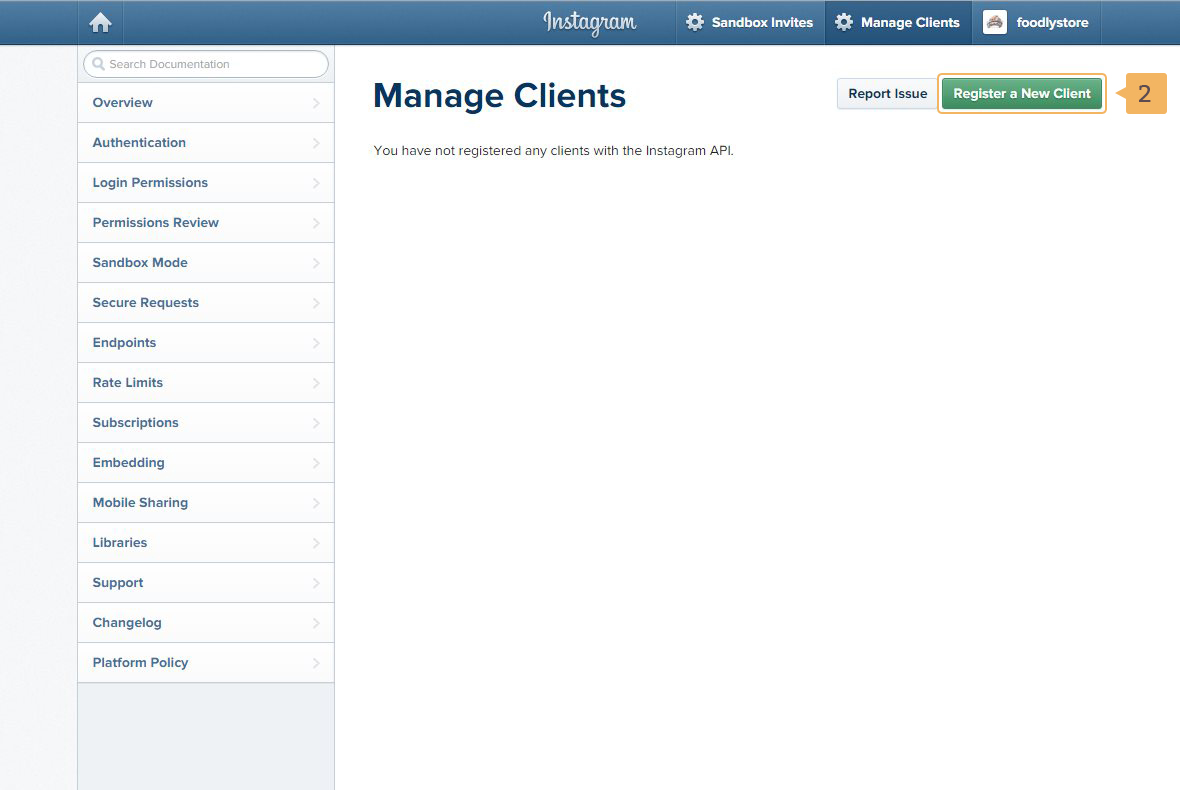
- Click 'Register a New Client' (Fig. 1.4 - [ 2 ]).
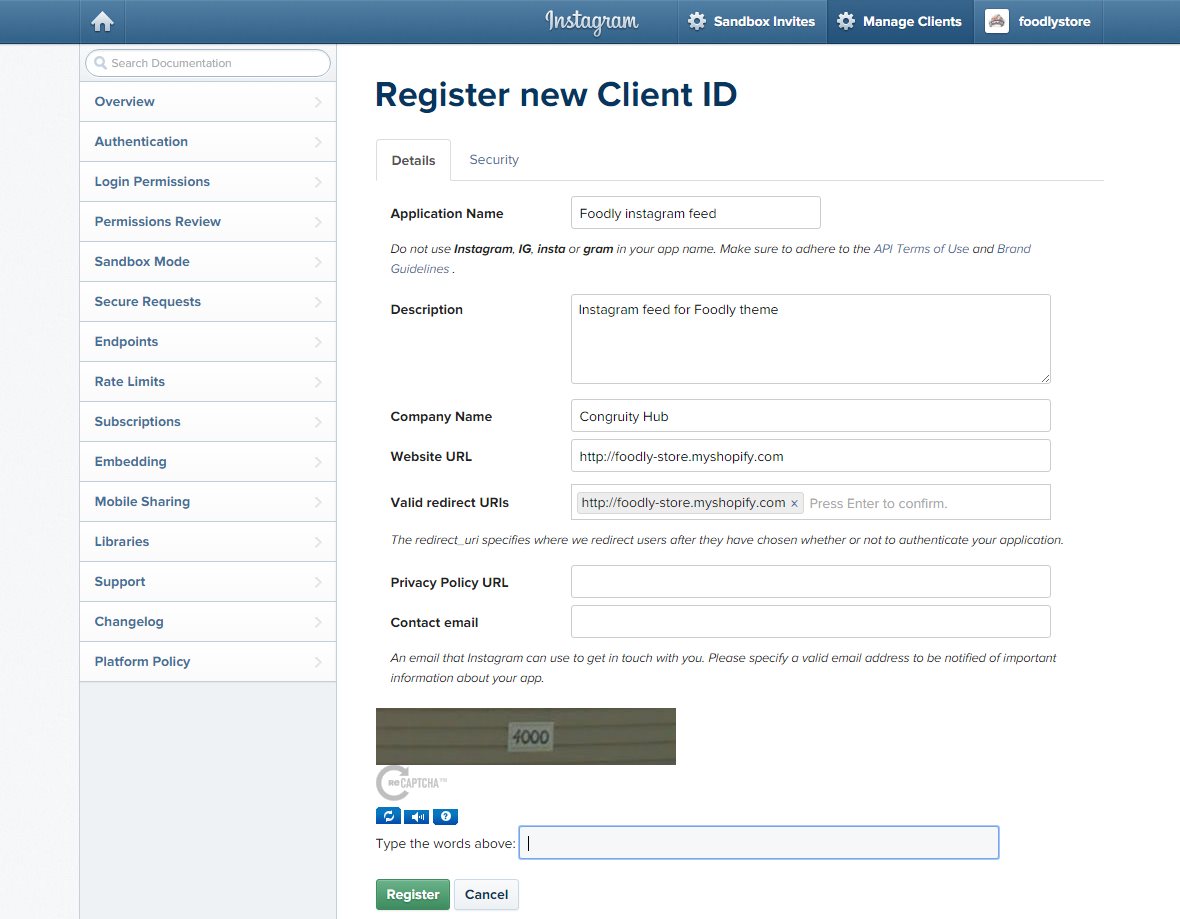
- Complete the form (Fig. 1.5).
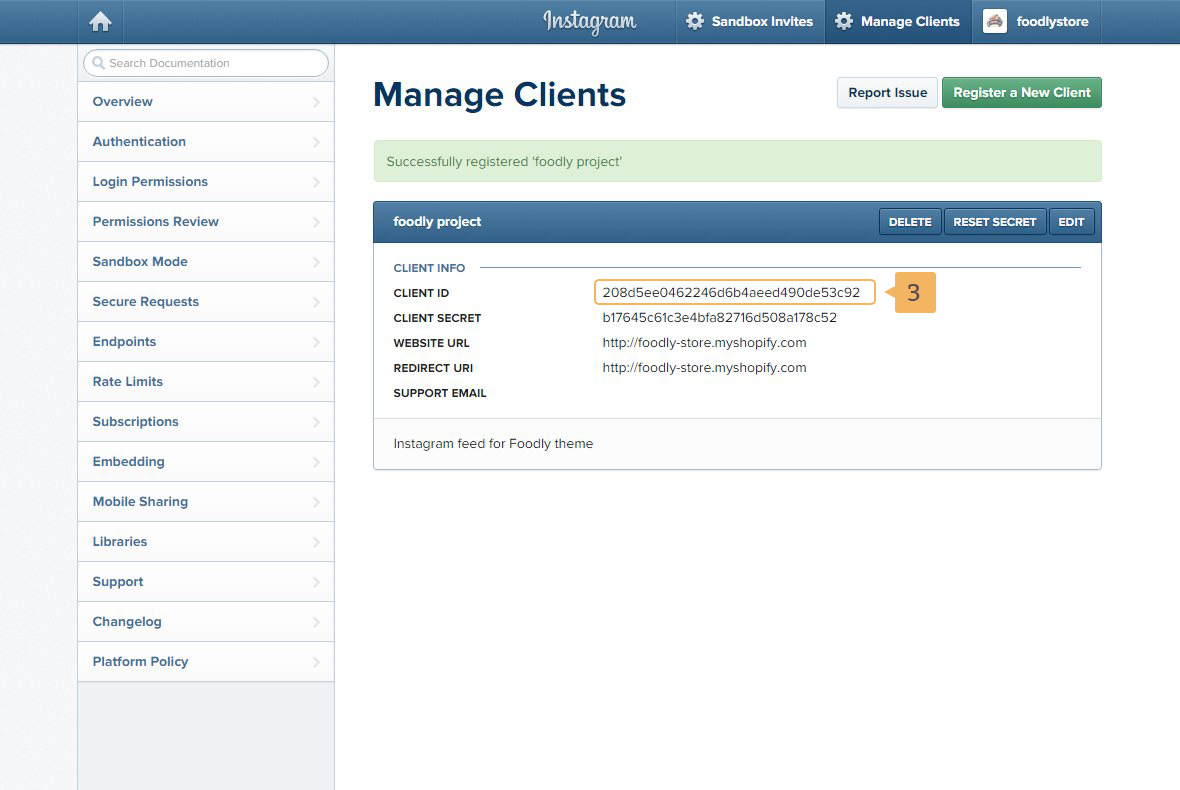
- Once your app is registered, your 'Client I'd will be displayed (Fig. 1.6 - [ 3 ]).
Information you've gathered - Instagram user ID, access token and client ID - should be pasted in the appropriate input fields in Footer settings ('Theme Settings' > 'Footer').