Wishlist page
Wishlist page is a list of products that appeals to user's taste. This page serves for the following purposes:
- to keep records of user's most wanted items to buy them later
- to record goods that user buys regularly
These actions have became an adherent part of shoping experience online and Foodly theme follow this practice. That's why there is an embedded wishlist page. It is suitable for the small shop. For the large store, we recommended using one of the Shopify Apps.
To enable wishlist page, please, go through the following steps:
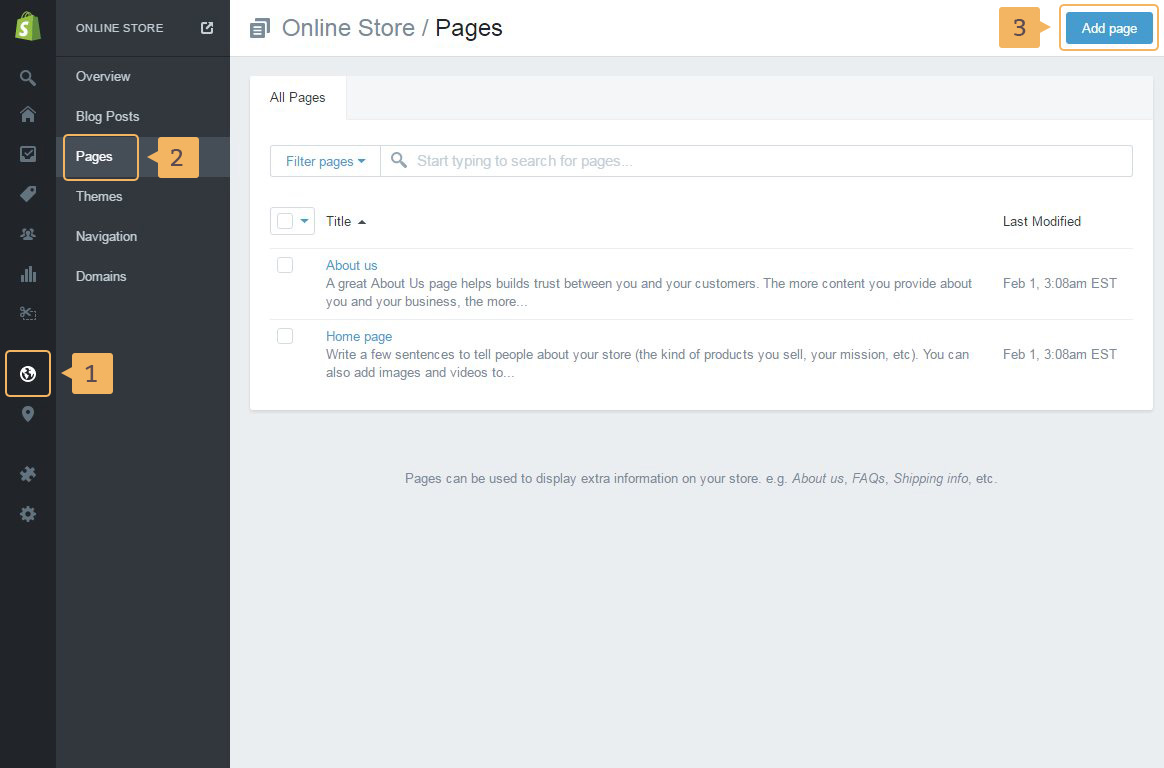
- First of all create the 'Wishlist page'. Open page with 'Pages': 'Online store'(Fig. 5.26 - [ 1 ]) > 'Pages' (Fig. 5.26 - [ 2 ]) > 'Add page' (Fig. 5.26 - [ 3 ])
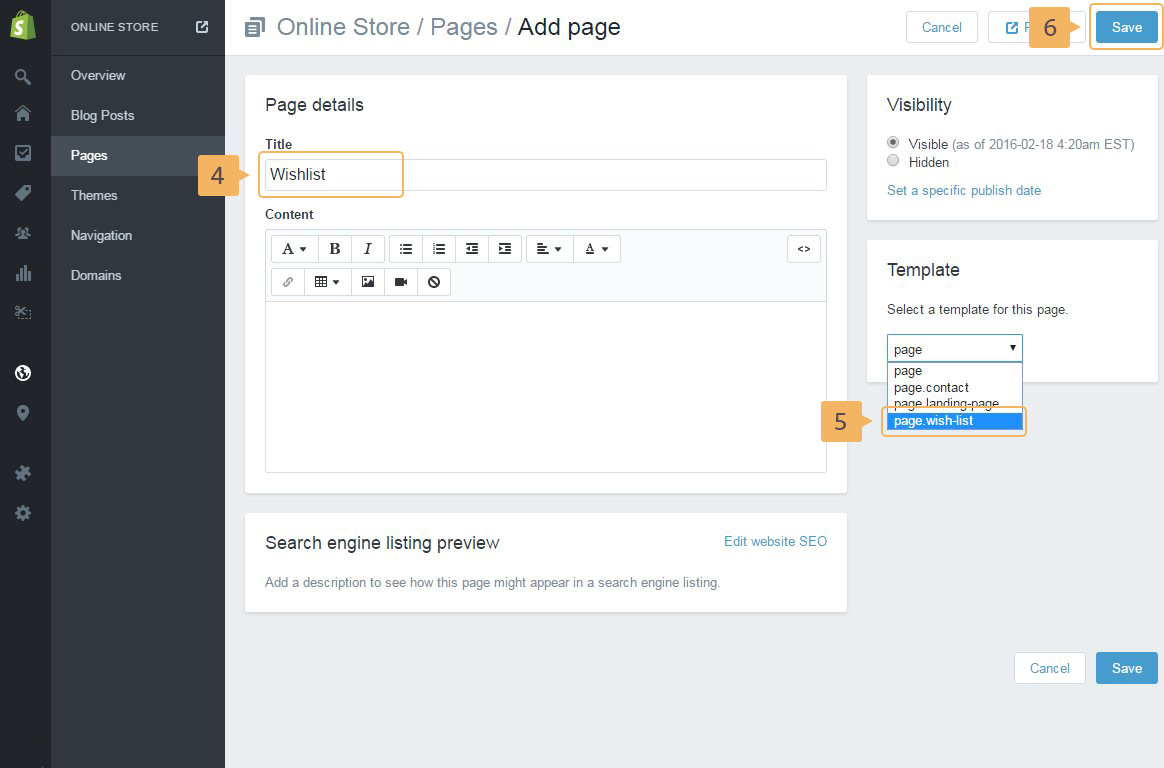
- Type the page tile (Fig. 5.27 - [ 4 ])
- Choose page template -
page.wish-list(Fig. 5.27 - [ 5 ]) - Save page (Fig. 5.27 - [ 6 ])
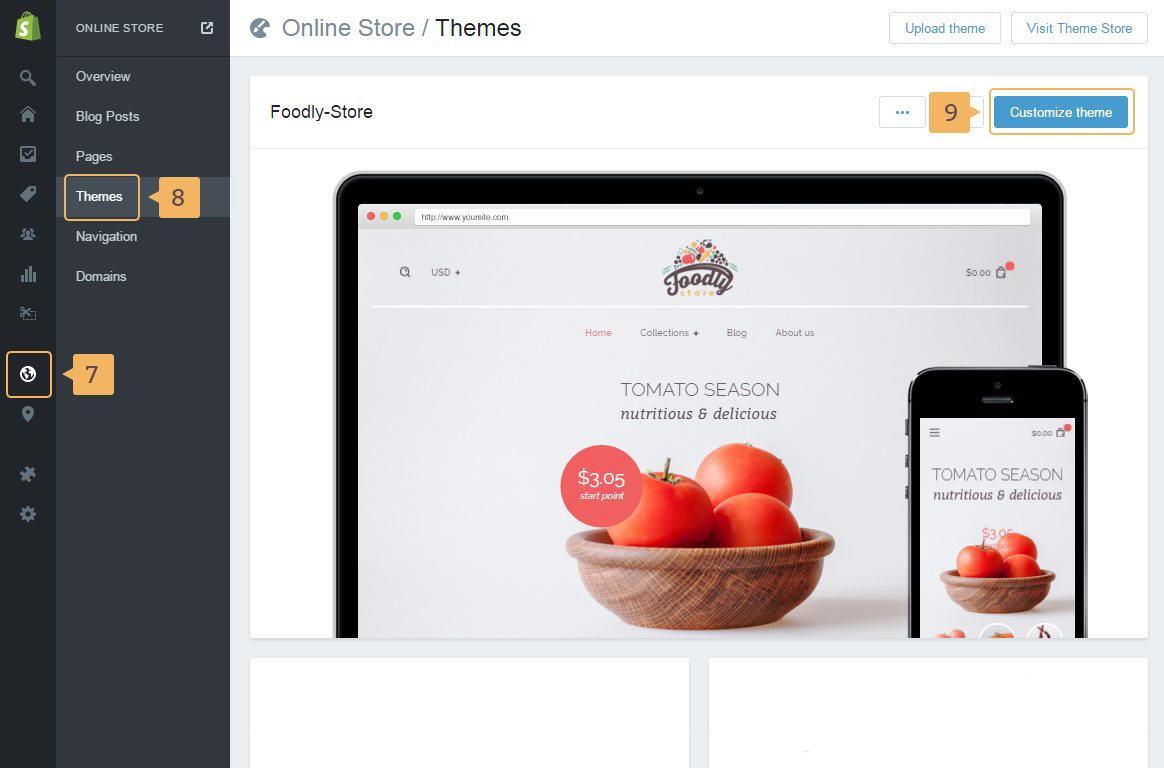
- And you need to enable 'Wishlist page' on 'Theme customize' page: 'Online store'(Fig. 5.28 - [ 7 ]) > 'Themes' (Fig. 5.28 - [ 8 ]) > 'Customize theme' (Fig. 5.28 - [ 9 ])
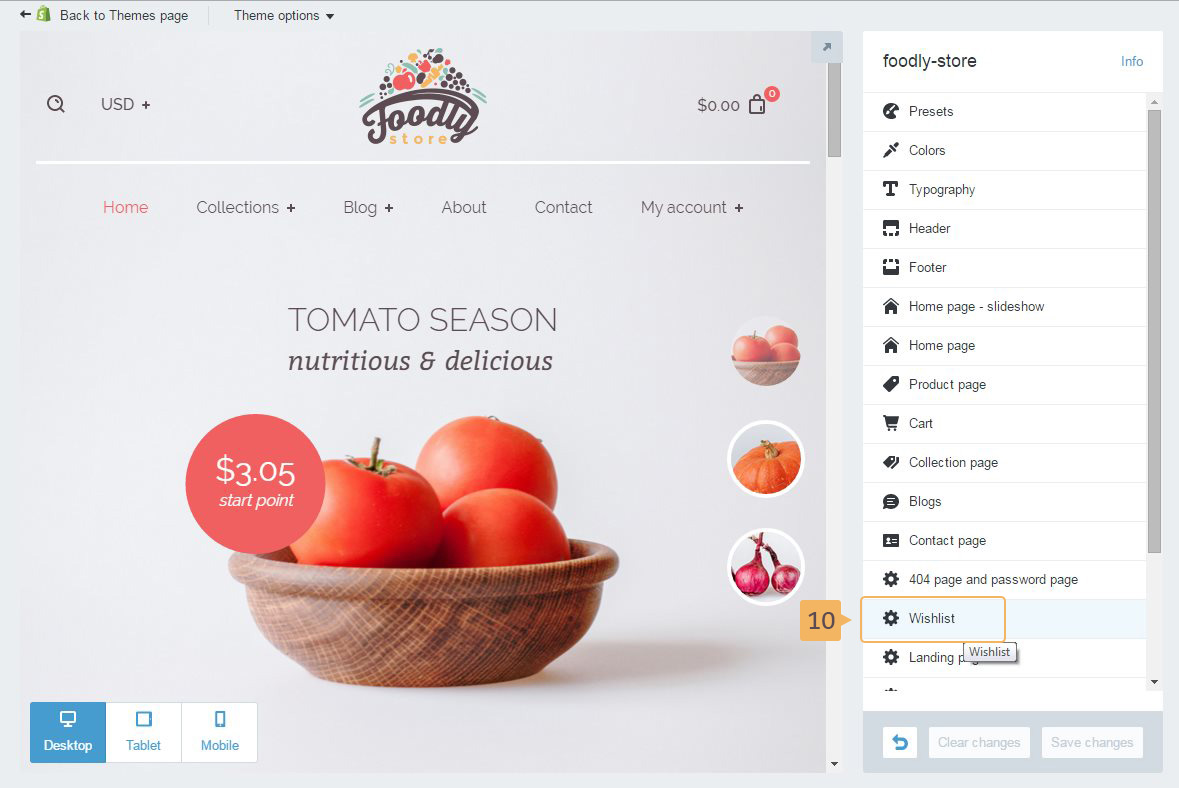
- In the opened page, click 'Wishlist' (Fig. 5.29 - [ 10 ]).
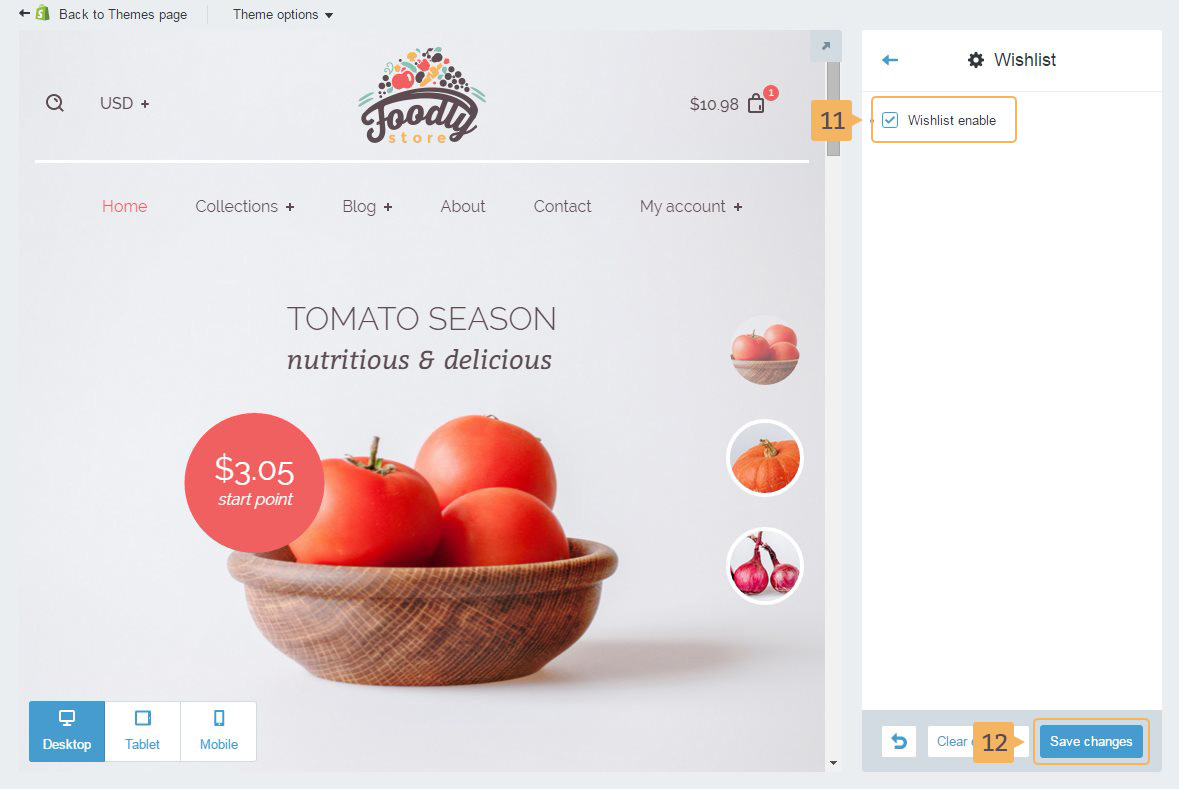
- Enable 'Wishlist' (Fig. 5.30 - [ 11 ])
- Save Changes (Fig. 5.30 - [ 12 ])