Product Packaging
As the world of ecommerce develops so do the expectations of customers buying online. Years ago packaging and shipping was simply a way to receive a product purchased online, however, more and more, people are looking for shipping, packaging and presentation to all be part of the shopping experience.
This expectation means that for many businesses, outside of selling commodities, competing effectively means going above and beyond to impress customers and exceed their expectations by delivering more than just a product, but also an experience.
Your packaging and presentation can be an effective way to set yourself apart.
Our reccomendadtion to read about shipping and packaging:
- The Beginner's Guide to Ecommerce Shipping and Fulfillment
- How To Create a Memorable and Shareable Unboxing Experience for Your Brand
- 5 Ways to Use Packaging Inserts to Increase Customer Loyalty and Revenue
Sample of the packaging and their pricing available in Aliexpress.
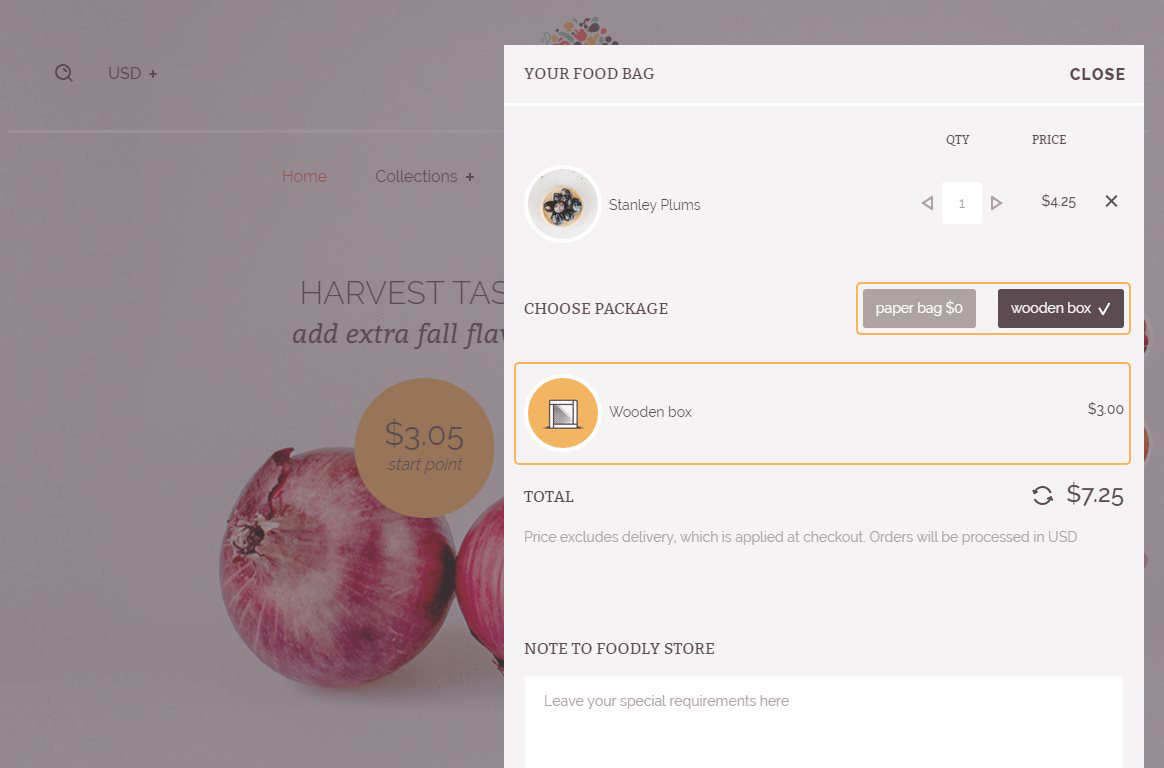
Foodly theme allows using two packaging: first is default - free, second can be adjusted. The look of packaging in the shopping cart is in Figure 3.26. Consider the creating of a paid package (in our case it's wooden box):
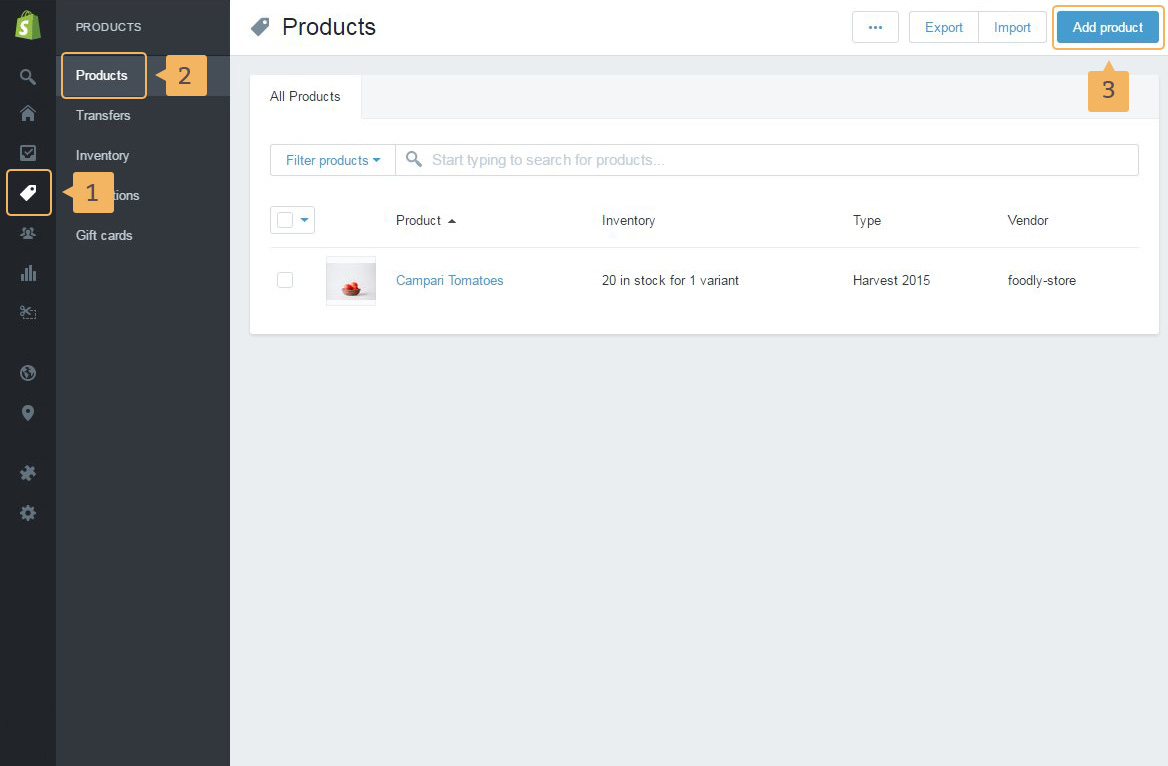
- First of all create the packaging product. It will be shown in the shopping cart. Open product page: 'Products' (Fig. 3.27 - [ 1 ]) > 'Products' (Fig. 3.27 - [ 2 ]).
- Add new product (Fig. 3.27 - [ 3 ])
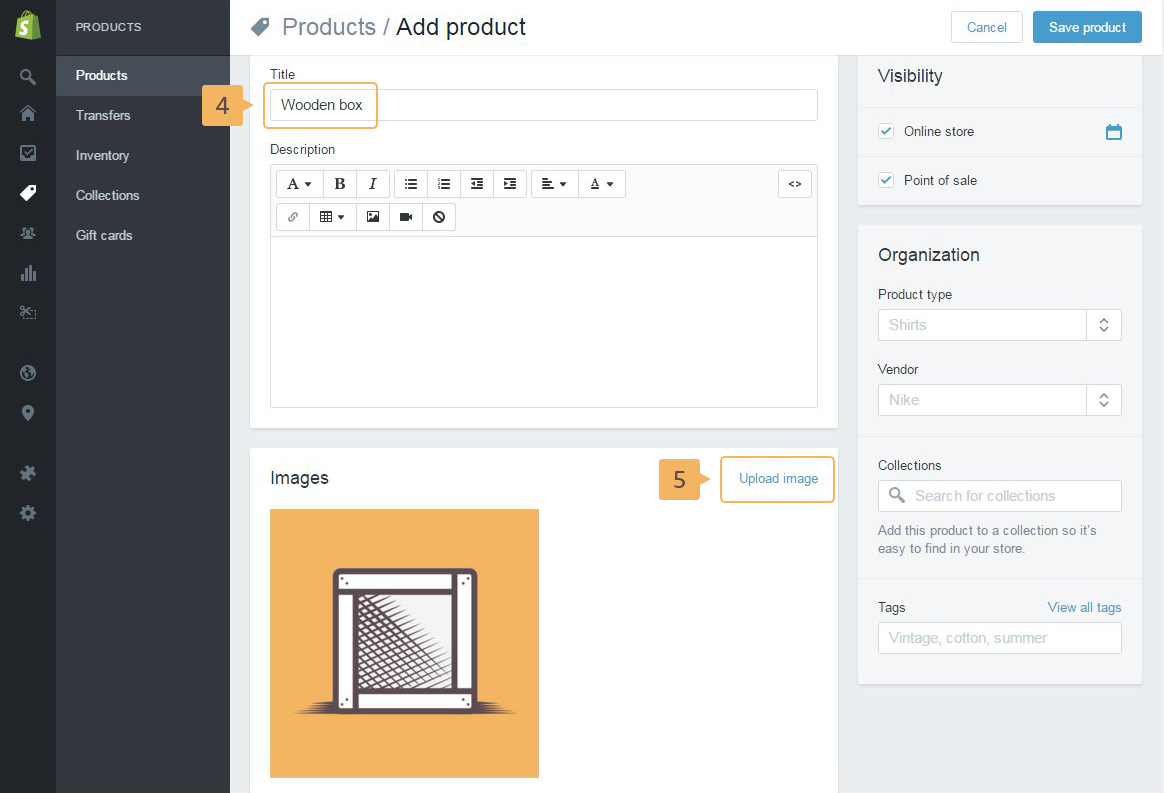
- Type the product name (Fig. 3.28 - [ 4 ]).
- Add image for packiging (Fig. 3.28 - [ 5 ]).
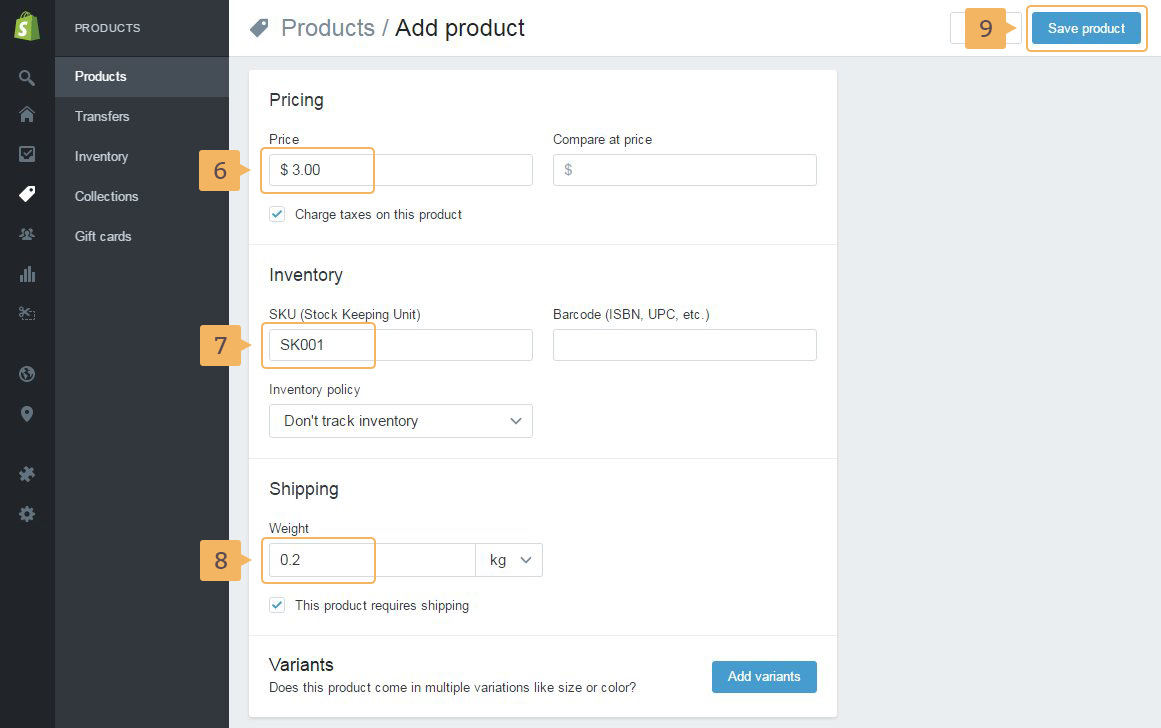
- Set price (Fig. 3.29 - [ 6 ]). The title, image and price will be shown in the shopping cart.
-
Type SKU number (Fig. 3.29 - [ 7 ]).
Notice! It is important. This SKU number helps the script to find current packaging product.
- Add weight for shipping if it's necessary (Fig. 3.29 - [ 8 ]).
- Save product (Fig. 3.29 - [ 9 ]).
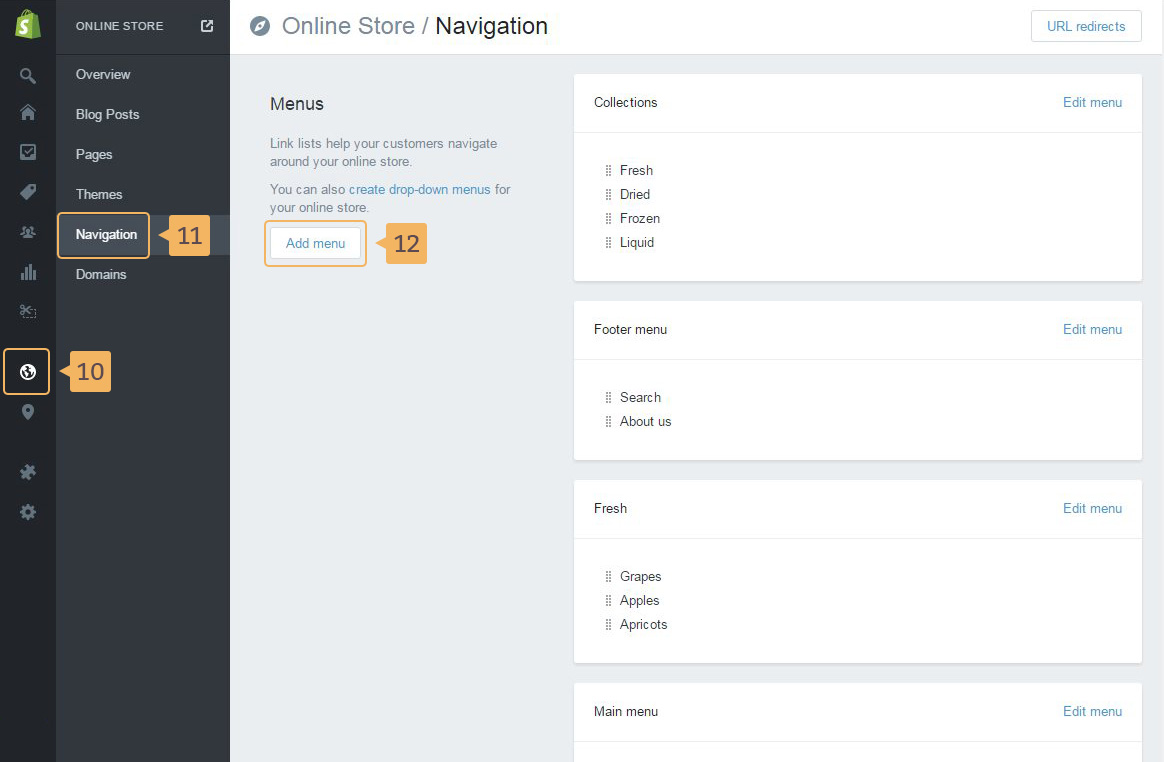
- Second part, it's creating the special menu item link. This is necessary, in order to Foodly theme could access to product packaging. Open page with Navigation: 'Online Store' (Fig. 3.30 - [ 10 ]) > 'Navigation' (Fig. 3.30 - [ 11 ])
- Click Add menu button (Fig. 3.30 - [ 12 ]).
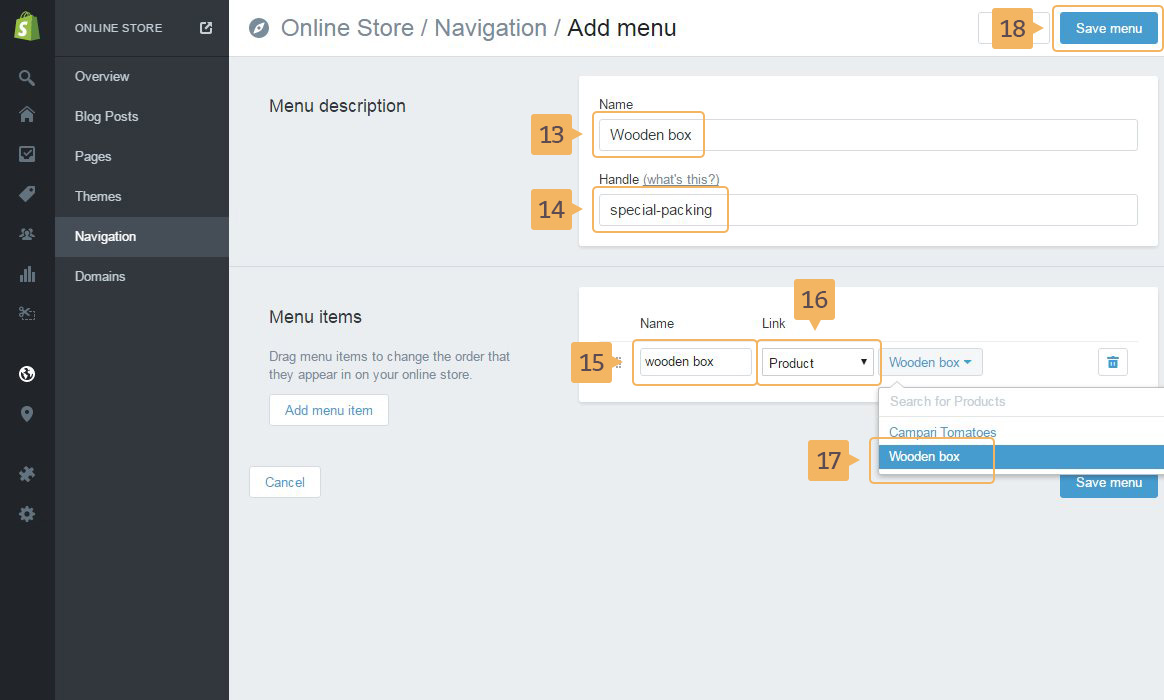
- Type any name for the menu. (Fig. 3.31 - [ 13 ])
-
Type handle:
special-packing(Fig. 3.31 - [ 14 ]).Notice! This is required for proper work of the shopping cart.
- Type any name for the menu item (Fig. 3.31 - [ 15 ]). Choose 'Product' for the link (Fig. 3.31 - [ 16 ]). And choose the created packaging product (Fig. 3.31 - [ 17 ]).
- Save changes (Fig. 3.31 - [ 18 ]).
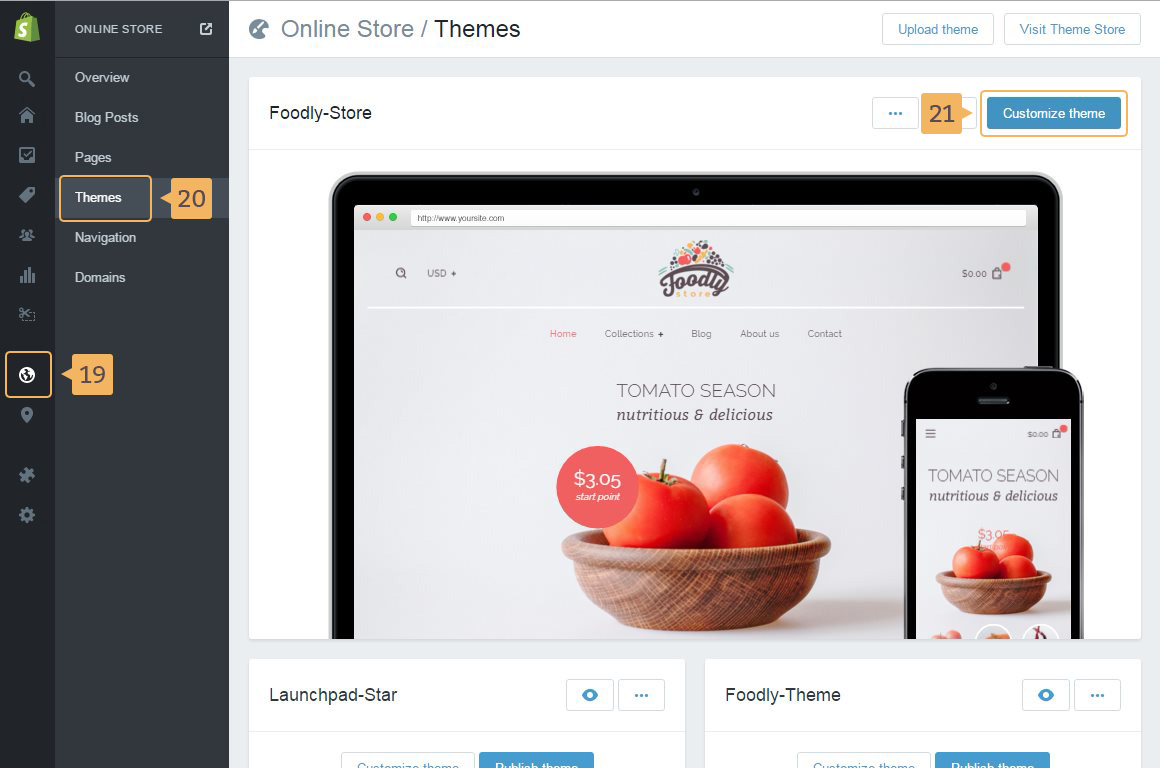
- Next step it's adding packaging product SKU number to settings of Foodly theme. Open customize panel: click 'Online store'(Fig. 3.32 - [ 19 ]) > 'Themes' (Fig. 3.32 - [ 20 ]) > 'Customize theme' button (Fig. 3.32 - [ 21 ]).
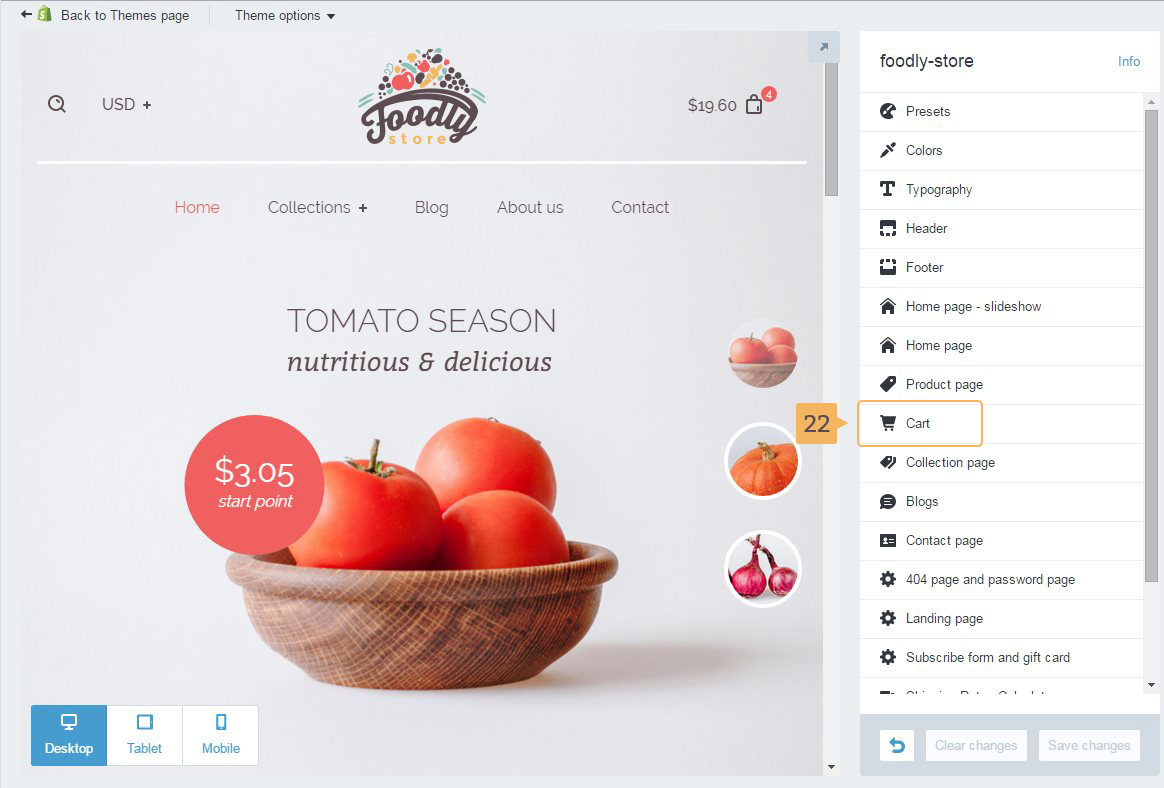
- Open 'Cart' customize panel (Fig. 3.33 - [ 22 ])
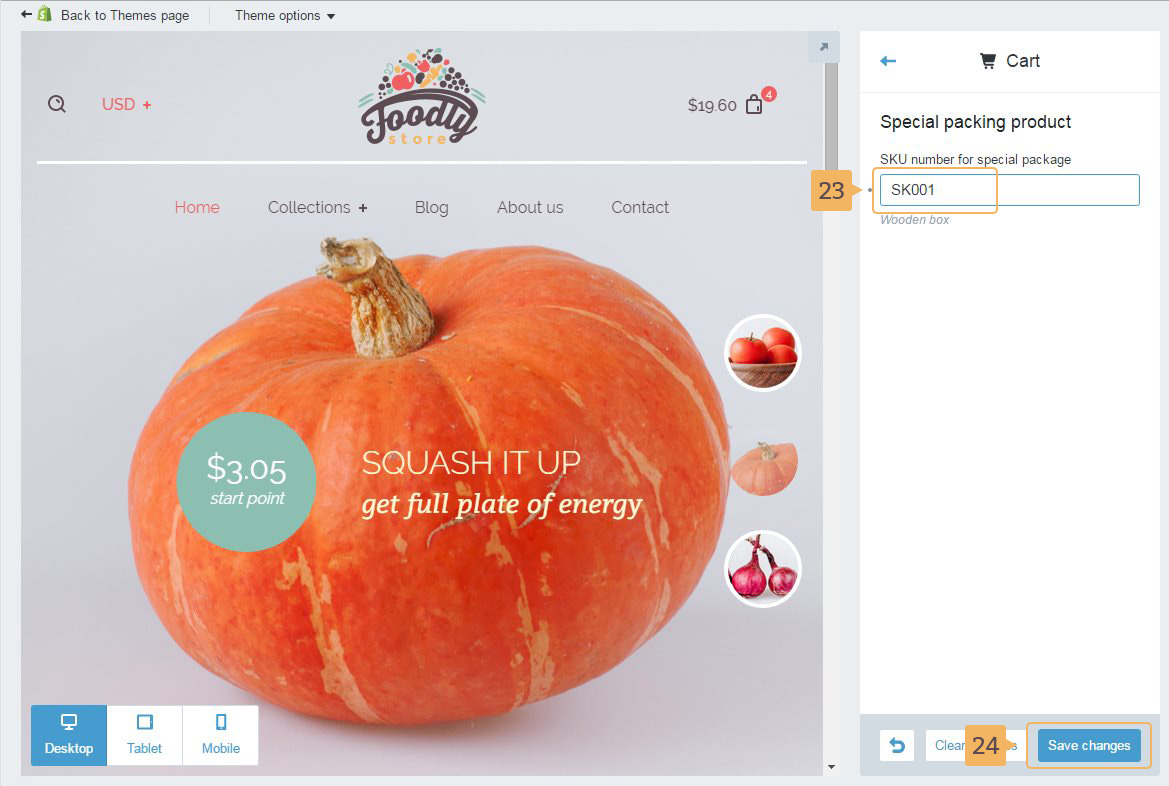
- Type the packiging product SKU number (from step 6 of this guide) (Fig. 3.34 - [ 23 ])
- Click 'Save changes' button (Fig. 3.34 - [ 24 ]).