Getting Started with Foodly Theme
Installation is the first step before using Foodly theme as your main store theme. There are two options how to set up your Foodly store. There first one automatic using import plugin. It's preferred way if you have clean Shopify store. Second one is step by step manual installation. It's safer variant if you have already an existing shop. If you choose second installation variant, please, go through the following steps to install and publish Foodly theme:
- Log in into your Shopify admin panel
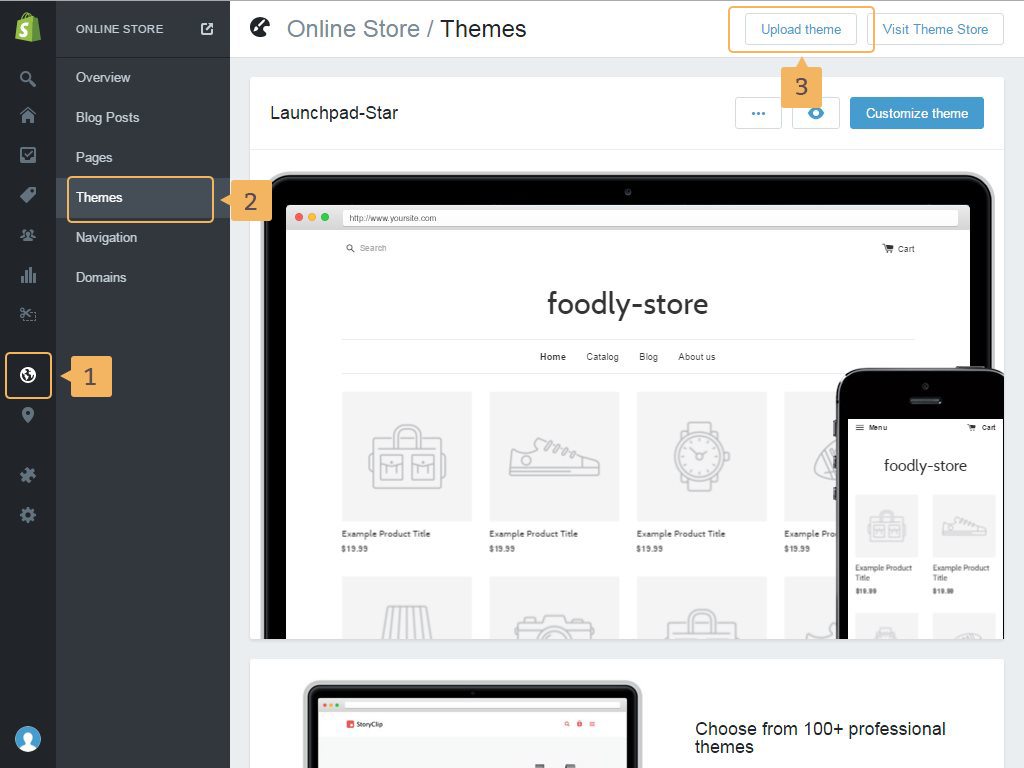
- Click 'Online Store' ( Fig. 1.1 - [ 1 ]) > 'Themes' ( Fig. 1.1 - [ 2 ]) > 'Upload theme' ( Fig. 1.1 - [ 3 ])
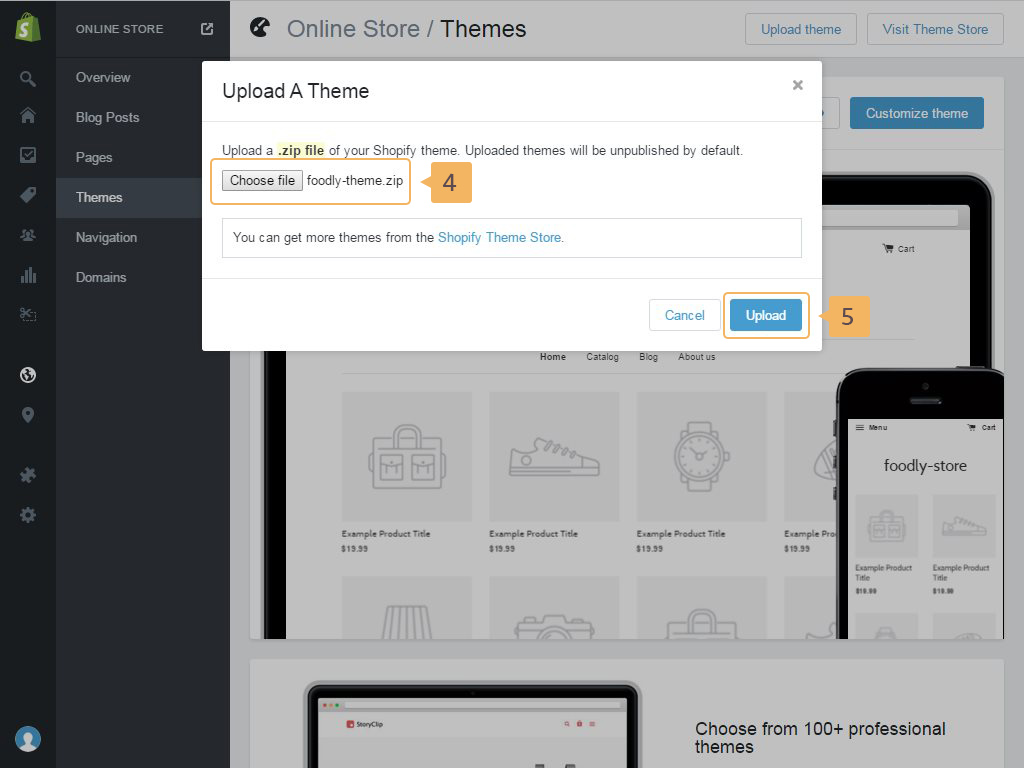
- Select a zip file foodly-theme-vX.X.zip with on your PC. Theme archive is located in the 02_Foodly-theme folder in achive that you’ve downloaded from Themeforest ( Fig. 1.2 - [ 4 ]). After that click upload button in popup window ( Fig. 1.2 - [ 5 ])
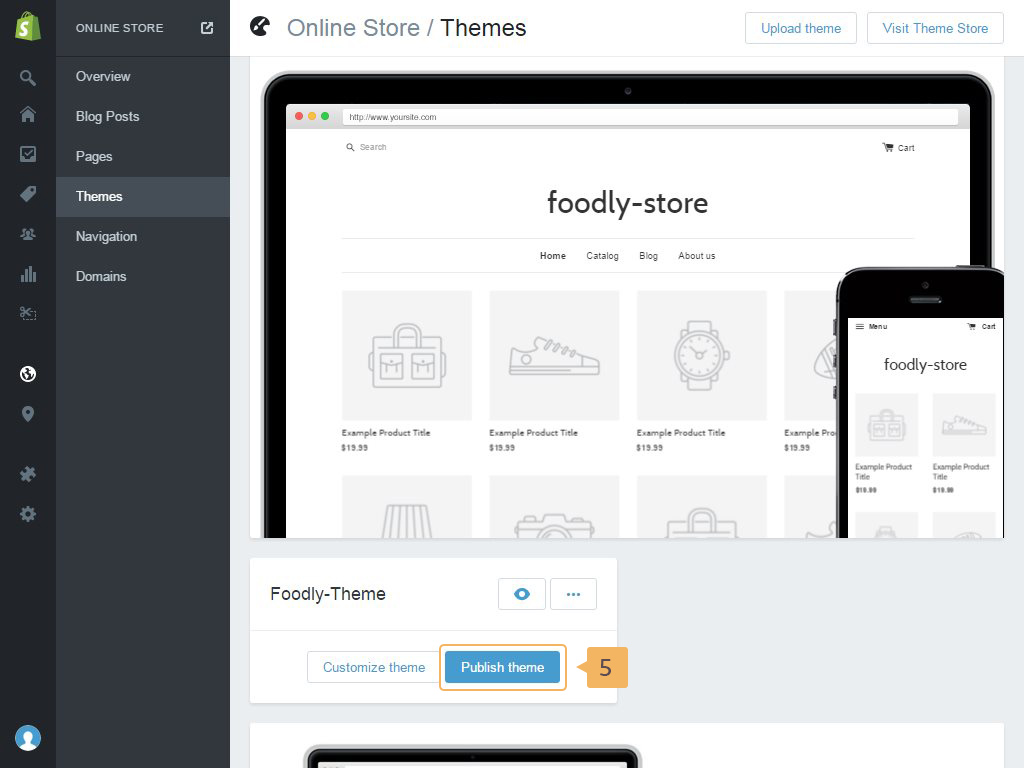
- To publish Foodly, click 'Publish theme' button after uploading theme ( Fig. 1.3 - [ 5 ]).
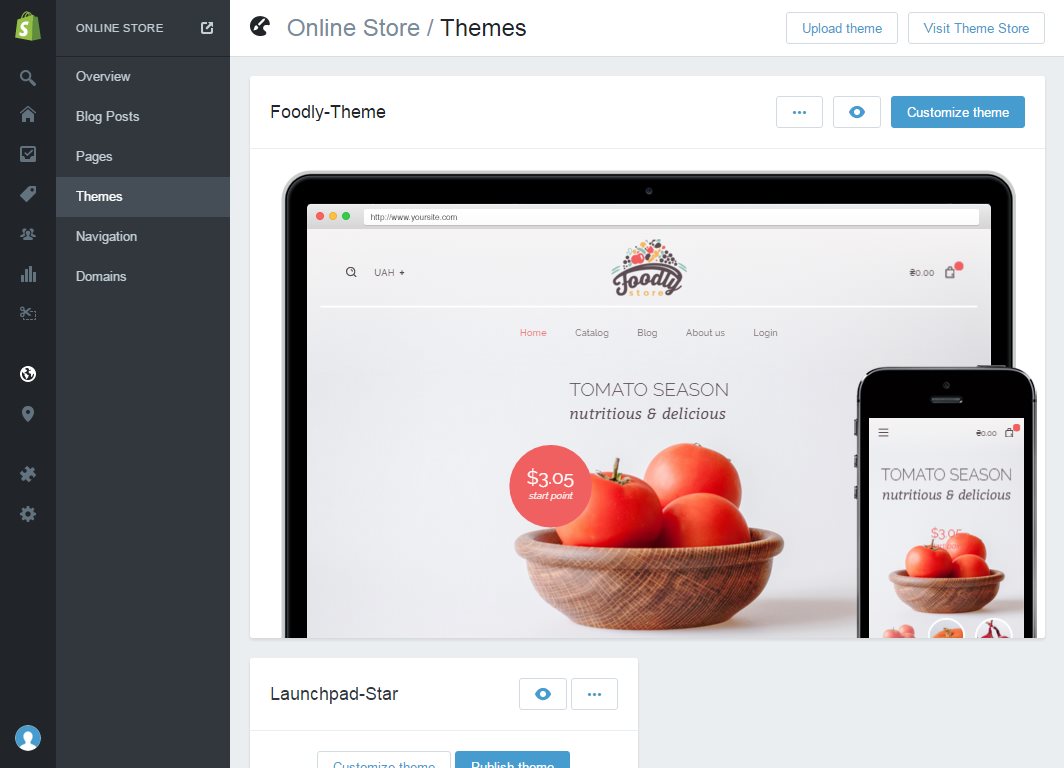
- After accomplishing steps above, you should get result shown on Figure 1.4
You may also check the initial source of theme installation - a Shopify help post.