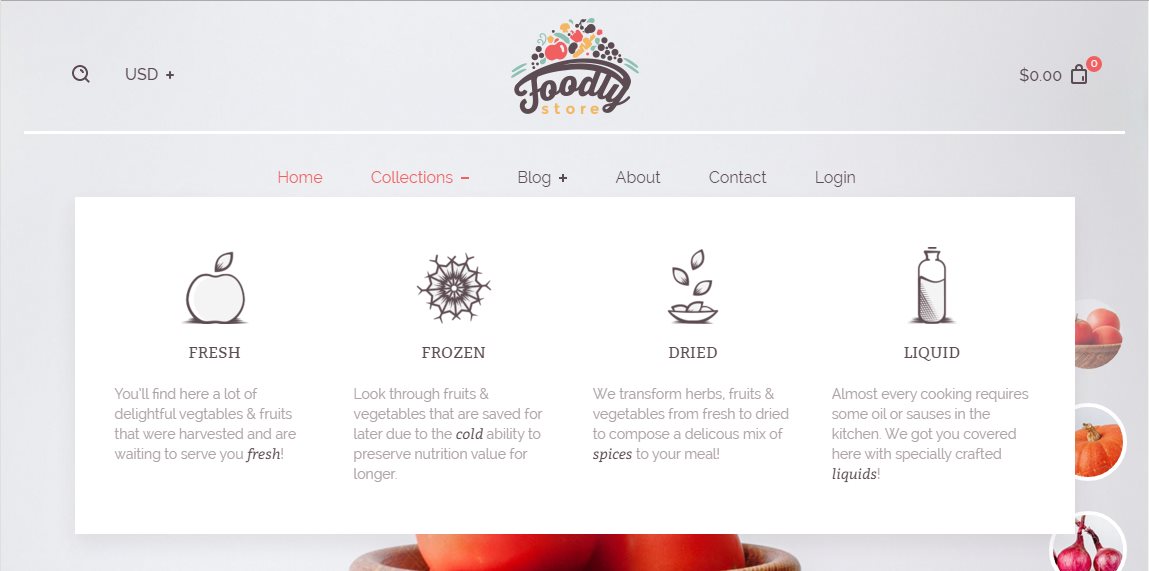
Visually Enriched Mega Menu (Dropdown)
Foodly theme allows creating not just simple dropdowns but mega menus of two types for your collections. This section is about visually enriched mega menu with special areas for images and icons. You may see how it looks in the Figure 2.14.
Notice! To use this menu, you need to customize collections of the store. Before you jump on creating this menu, please, check our instructions how to create collection and customize it.
When everything is set up with your collections you may go through the following steps to add visually appealing mega menu to your store navigation:
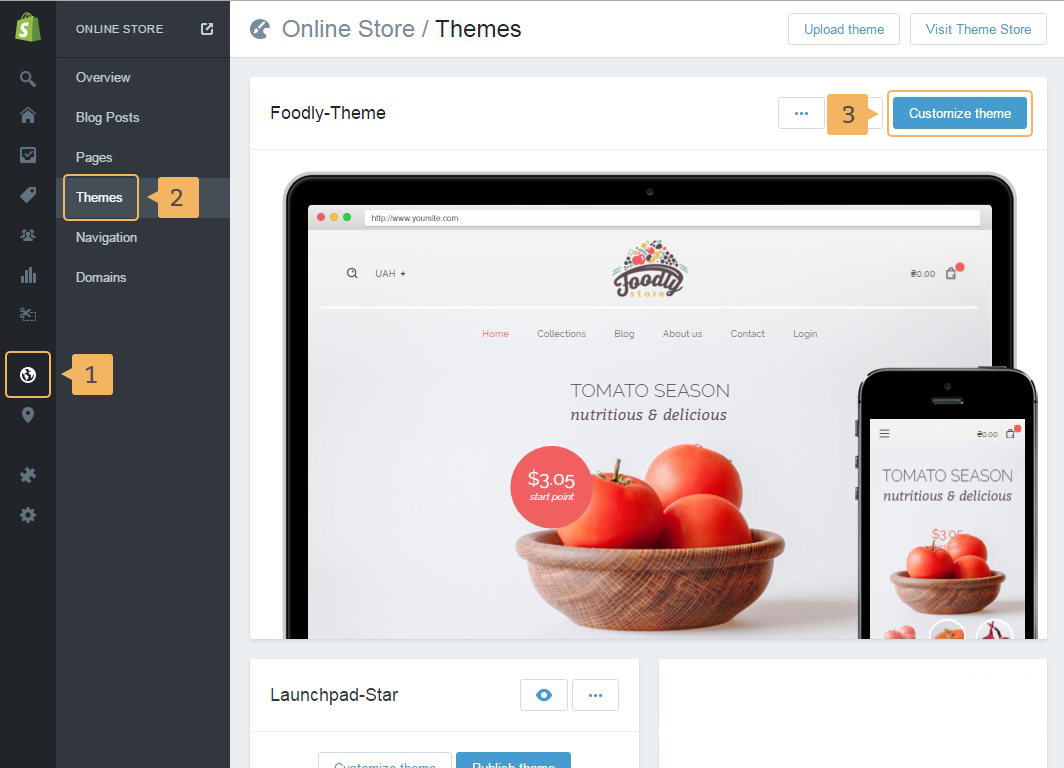
- Open navigation theme customization panel following steps from [ 1 ] to [ 3 ] shown in Figure 2.10
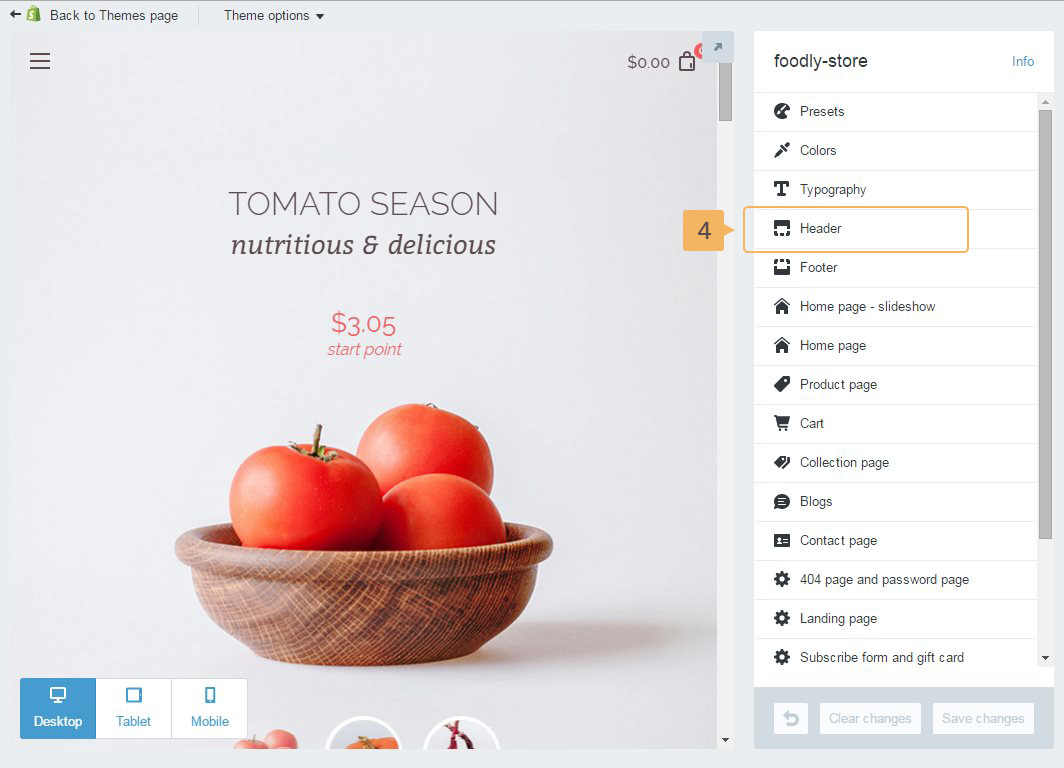
- In the right sidebar click 'Header' (Fig. 2.11 - [ 4 ])
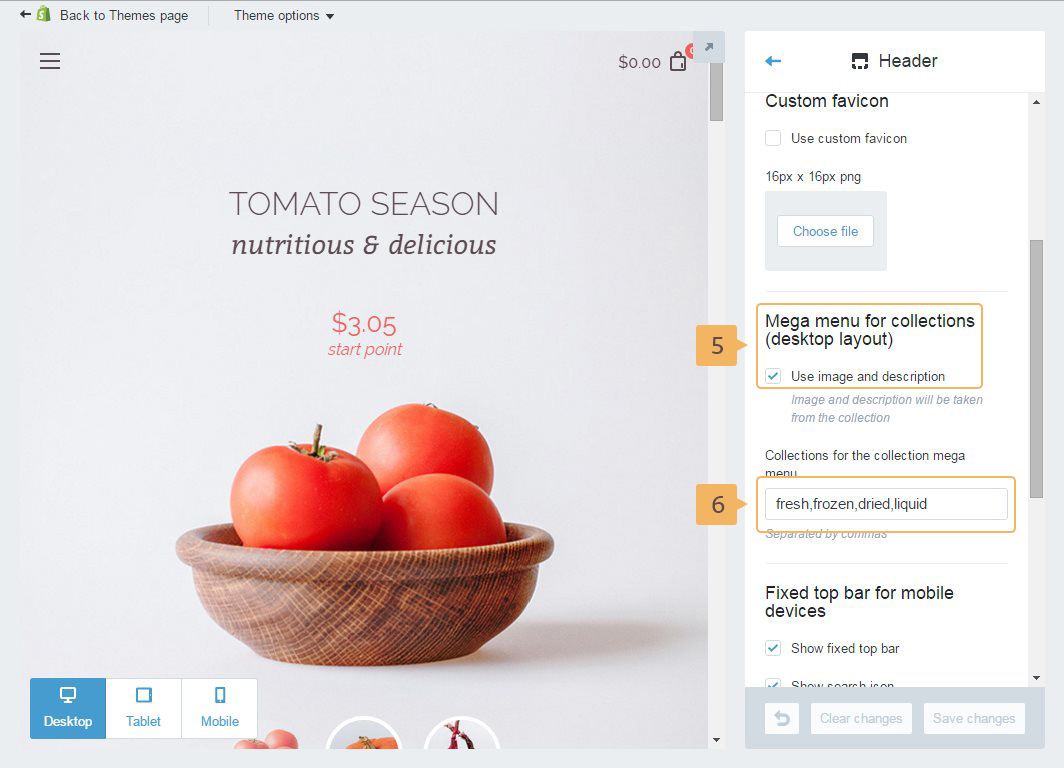
- Find 'Mega menu for collections (desktop layout)' and enable it (Fig. 2.12 - [ 5 ])
- Type collections you are going to use in the dropdown menu (Fig. 2.12 - [ 6 ])
Notice! The collection handles must be seperated with the comma without spaces. (How to get collection handle.)
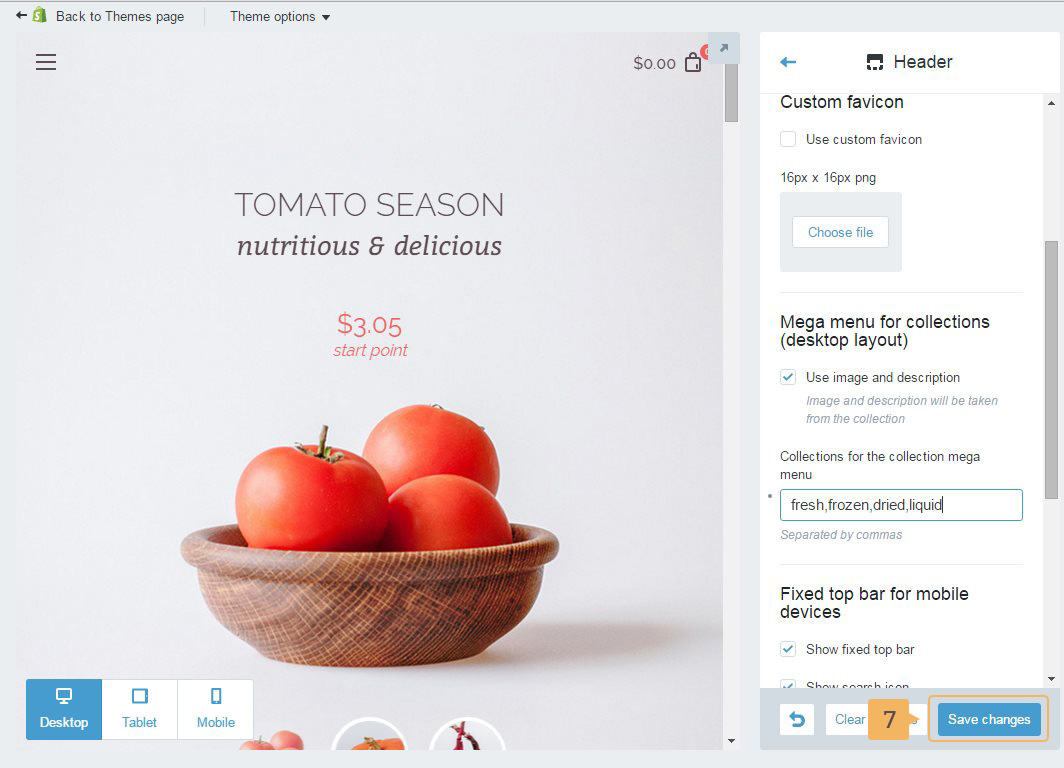
- Save customize settings (Fig. 2.13 - [ 7 ])